
What is Crew Studio?
Crew Studio is an innovative way to create AI agent crews without writing code.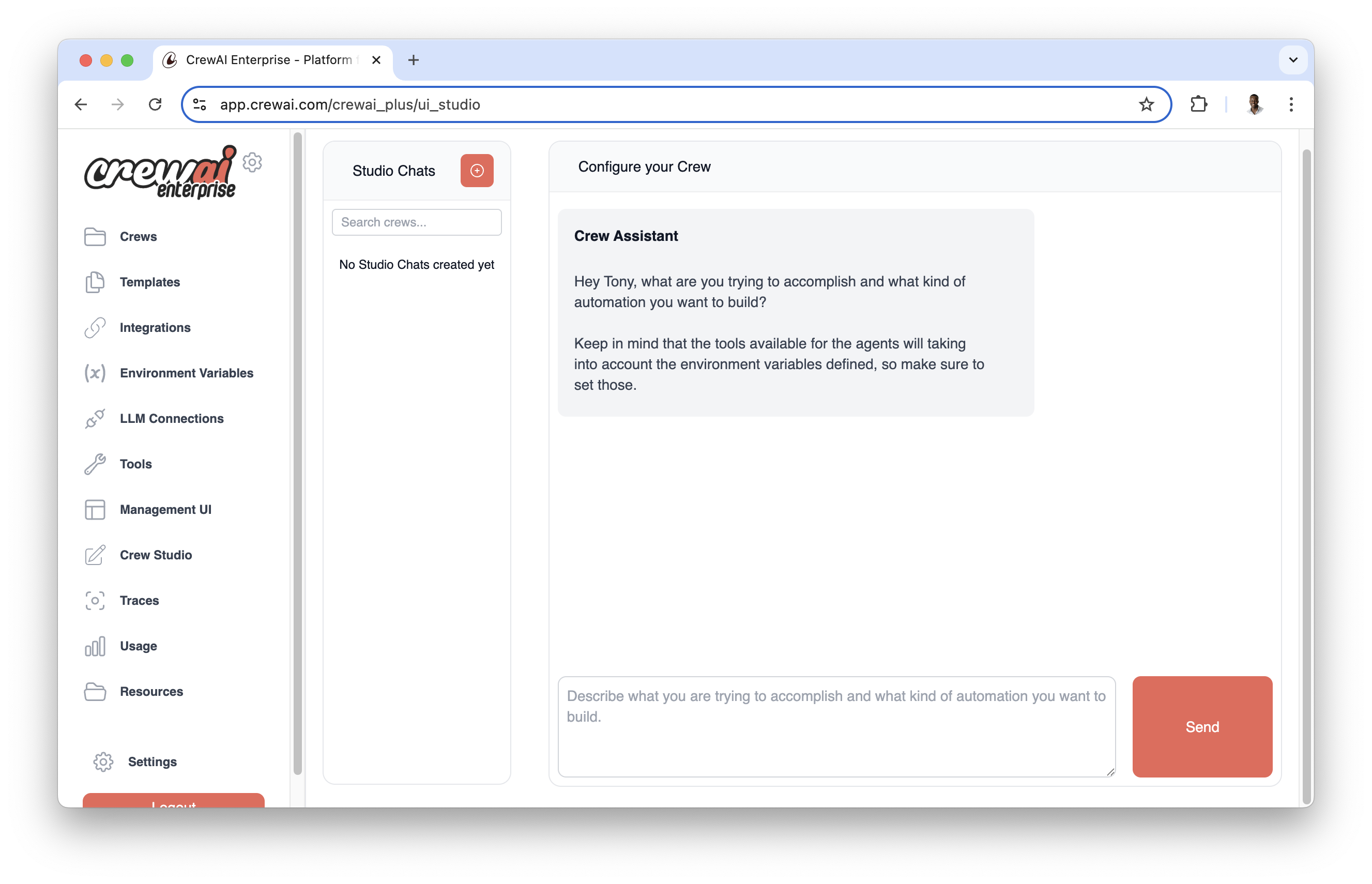
- Chat with the Crew Assistant to describe your problem
- Automatically generate agents and tasks
- Select appropriate tools
- Configure necessary inputs
- Generate downloadable code for customization
- Deploy directly to the CrewAI AMP platform
Configuration Steps
Before you can start using Crew Studio, you need to configure your LLM connections:Set Up LLM Connection
Go to the LLM Connections tab in your CrewAI AMP dashboard and create a new LLM connection.Configure your LLM connection: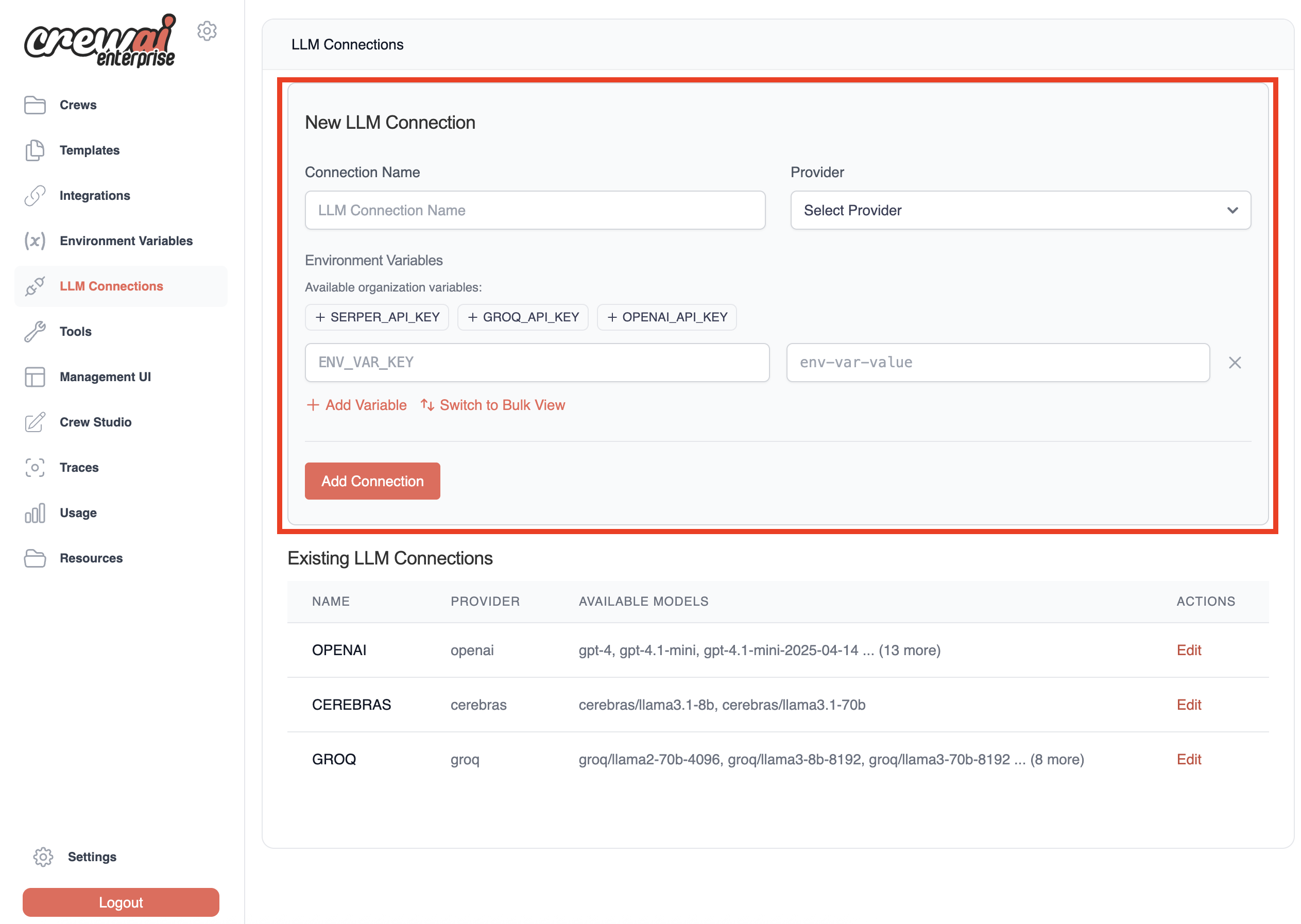
Feel free to use any LLM provider you want that is supported by CrewAI.
- Enter a
Connection Name(e.g.,OpenAI) - Select your model provider:
openaiorazure - Select models you’d like to use in your Studio-generated Crews
- We recommend at least
gpt-4o,o1-mini, andgpt-4o-mini
- We recommend at least
- Add your API key as an environment variable:
- For OpenAI: Add
OPENAI_API_KEYwith your API key - For Azure OpenAI: Refer to this article for configuration details
- For OpenAI: Add
- Click
Add Connectionto save your configuration
Verify Connection Added
Once you complete the setup, you’ll see your new connection added to the list of available connections.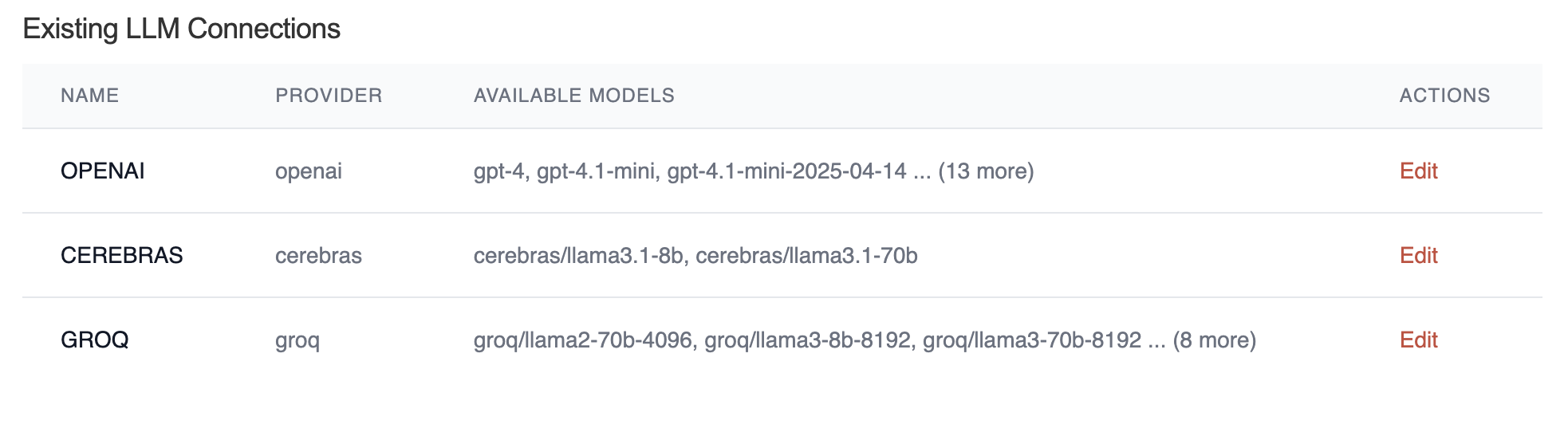
Using Crew Studio
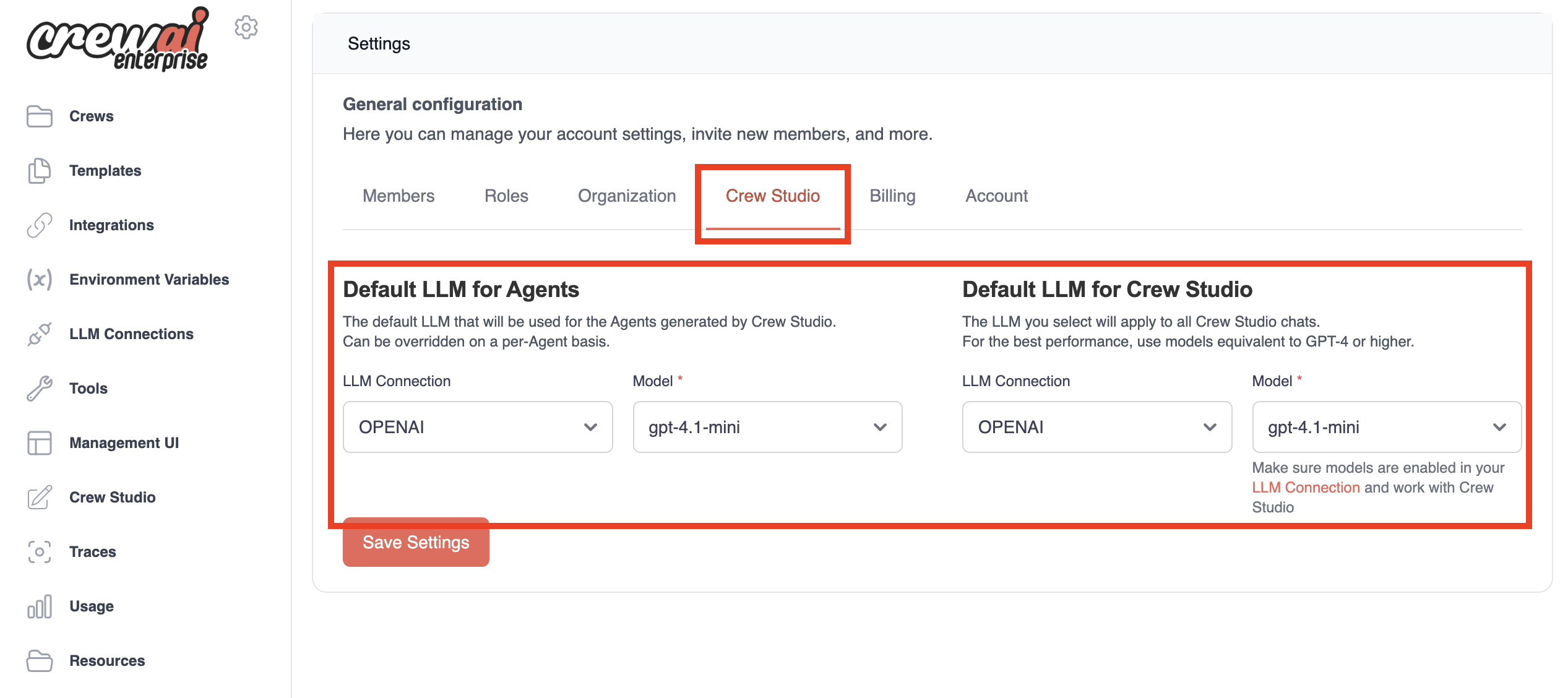
Now that you’ve configured your LLM connection and default settings, you’re ready to start using Crew Studio!Start a Conversation
Start a conversation with the Crew Assistant by describing the problem you want to solve:The Crew Assistant will ask clarifying questions to better understand your requirements.
Review Generated Crew
Review the generated crew configuration, including:
- Agents and their roles
- Tasks to be performed
- Required inputs
- Tools to be used
Deploy or Download
Once you’re satisfied with the configuration, you can:
- Download the generated code for local customization
- Deploy the crew directly to the CrewAI AMP platform
- Modify the configuration and regenerate the crew
Example Workflow
Here’s a typical workflow for creating a crew with Crew Studio:Answer Questions
Respond to clarifying questions from the Crew Assistant to refine your requirements.
Review the Plan
Review the generated crew plan, which might include:
- A Research Agent to gather financial news
- An Analysis Agent to interpret the data
- A Recommendations Agent to provide investment advice
Need Help?
Contact our support team for assistance with Crew Studio or any other CrewAI AMP features.