
Prerequisites
- CrewAI Slack trigger installed and connected to your Slack workspace
- At least one crew configured in CrewAI
Setup Steps
Ensure the CrewAI Slack trigger is set up
In the CrewAI dashboard, navigate to the Triggers section.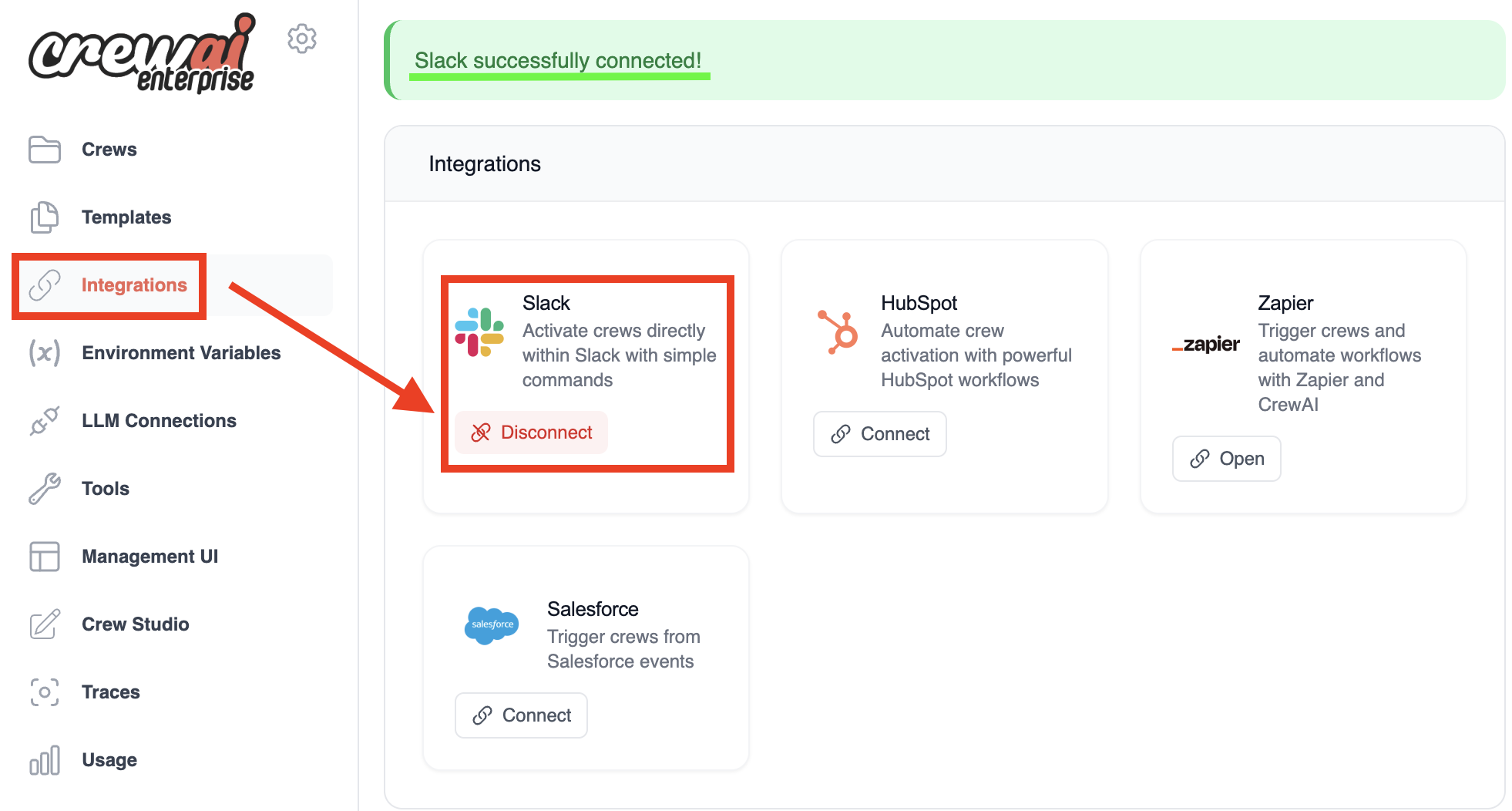
Open your Slack channel
- Navigate to the channel where you want to kickoff the crew.
- Type the slash command “/kickoff” to initiate the crew kickoff process.
- You should see a “Kickoff crew” appear as you type:
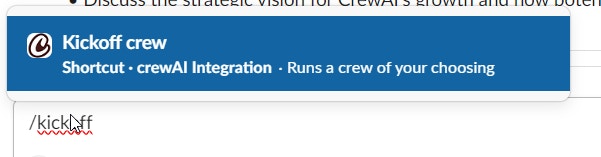
- Press Enter or select the “Kickoff crew” option. A dialog box titled “Kickoff an AI Crew” will appear.
Select the crew you want to start
- In the dropdown menu labeled “Select of the crews online:”, choose the crew you want to start.
- In the example below, “prep-for-meeting” is selected:
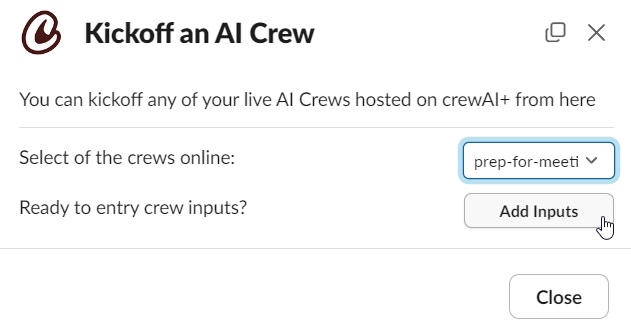
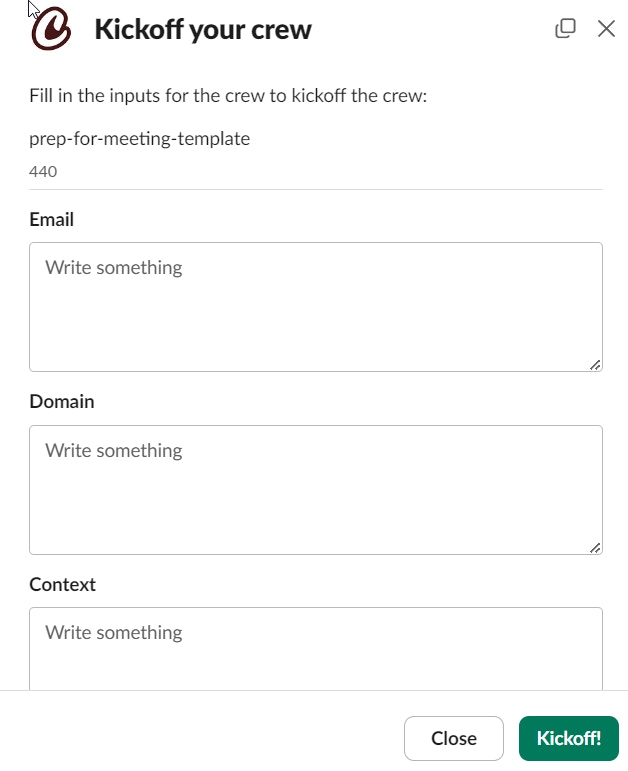
- If your crew requires any inputs, click the “Add Inputs” button to provide them.
The “Add Inputs” button is shown in the example above but is not yet clicked.
Tips
- Make sure you have the necessary permissions to use the
/kickoffcommand in your Slack workspace. - If you don’t see your desired crew in the dropdown, ensure it’s properly configured and online in CrewAI.