
Inviting Team Members
Access the Settings Page
- Log in to your CrewAI AMP account
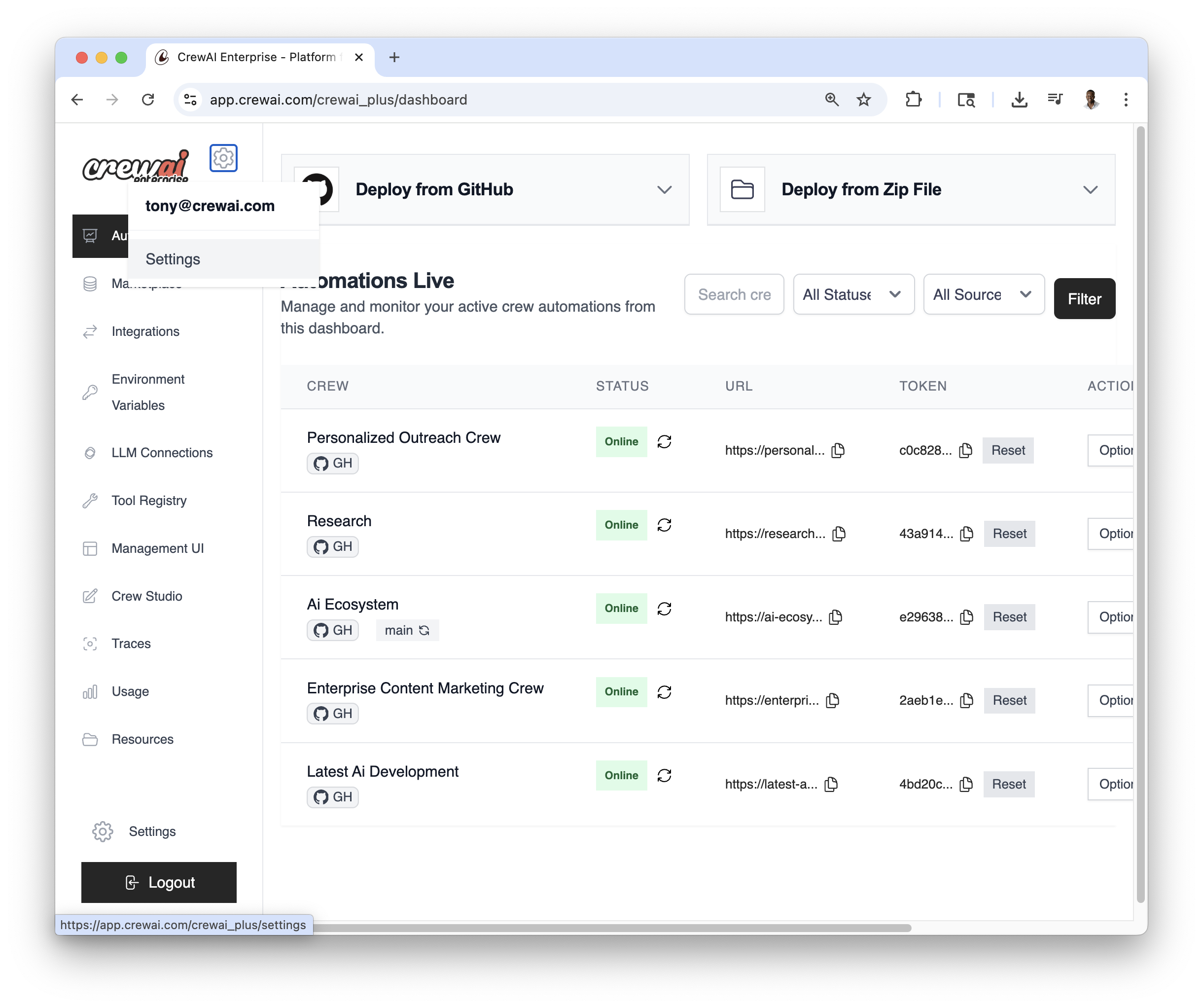
- Look for the gear icon (⚙️) in the top right corner of the dashboard
- Click on the gear icon to access the Settings page:
Navigate to the Members Section
- On the Settings page, you’ll see a
Memberstab - Click on the
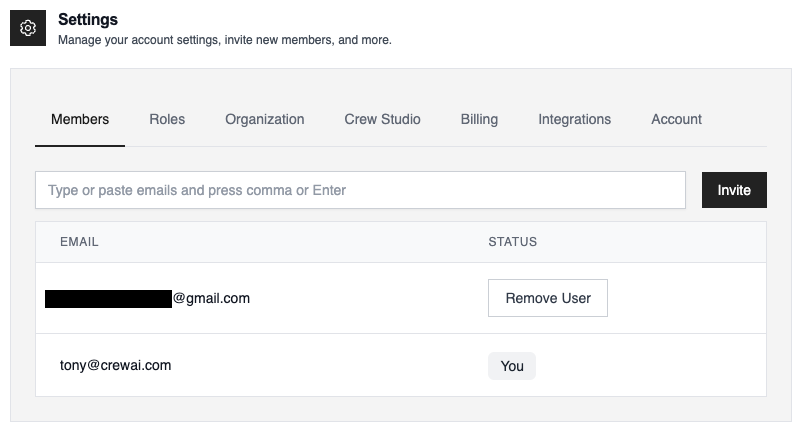
Memberstab to access the Members page: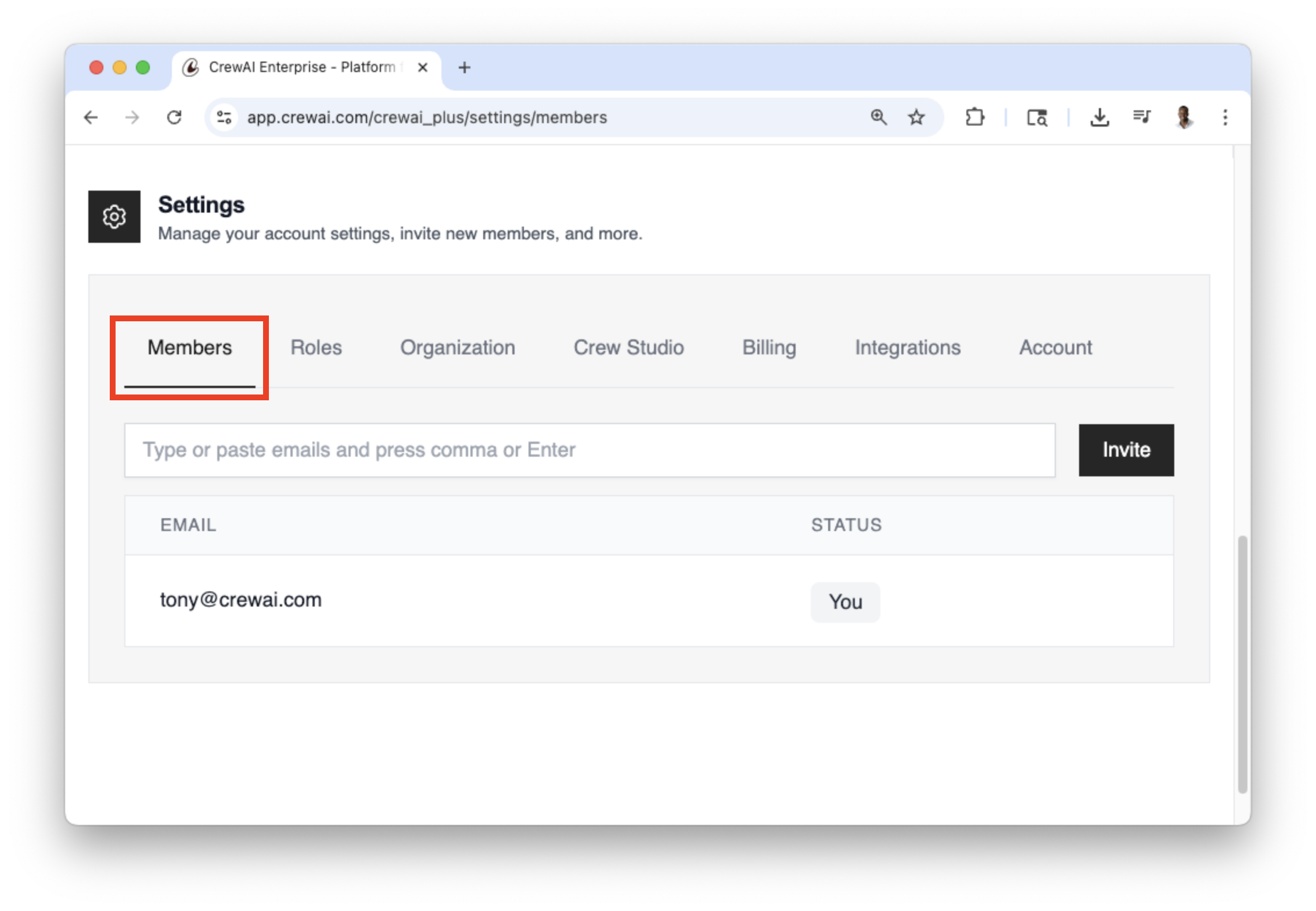
Invite New Members
- In the Members section, you’ll see a list of current members (including yourself)
- Locate the
Emailinput field - Enter the email address of the person you want to invite
- Click the
Invitebutton to send the invitation
Adding Roles
You can add roles to your team members to control their access to different parts of the platform.Access the Settings Page
- Log in to your CrewAI AMP account
- Look for the gear icon (⚙️) in the top right corner of the dashboard
- Click on the gear icon to access the Settings page:
Navigate to the Members Section
- On the Settings page, you’ll see a
Rolestab - Click on the
Rolestab to access the Roles page.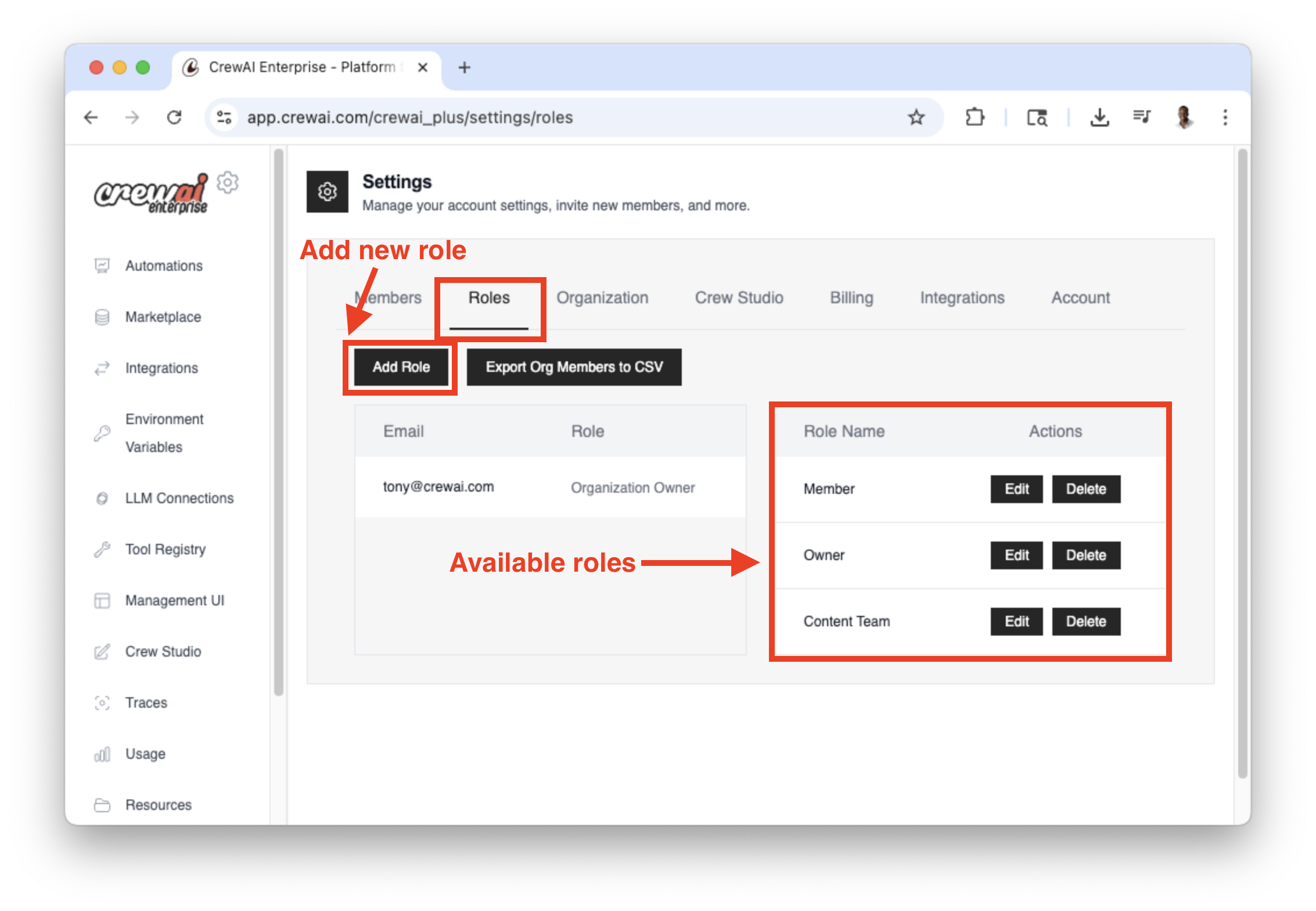
- Click on the
Add Rolebutton to add a new role. - Enter the details and permissions of the role and click the
Create Rolebutton to create the role.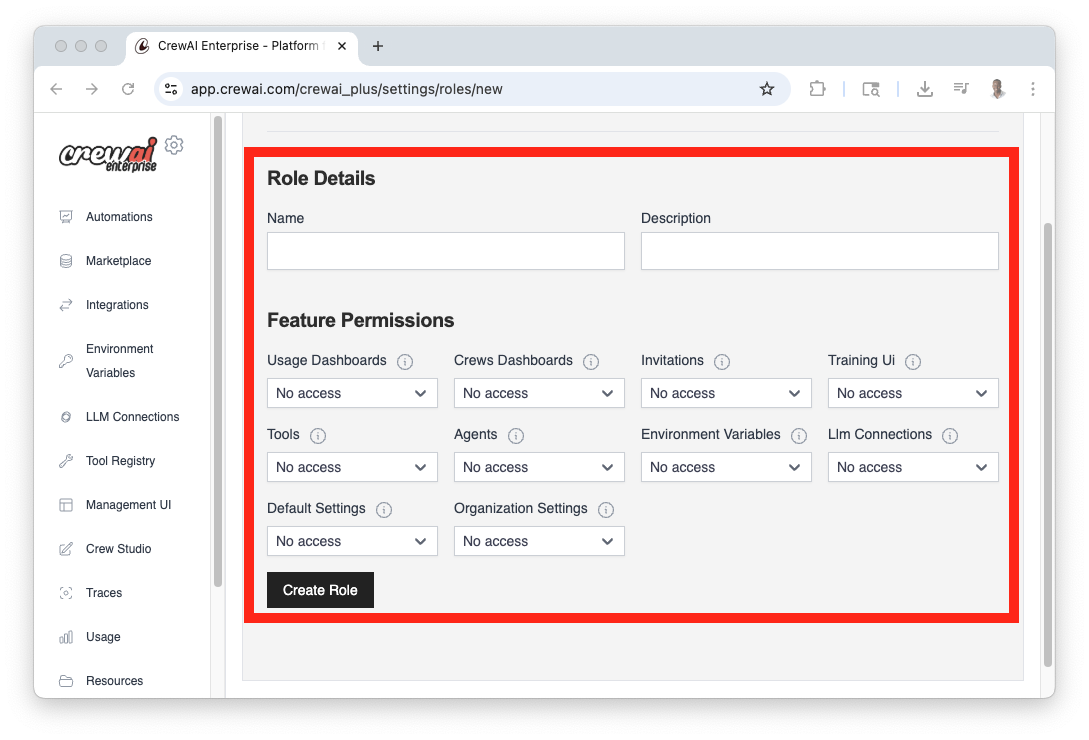
Add Roles to Members
- In the Members section, you’ll see a list of current members (including yourself)
- Once the member has accepted the invitation, you can add a role to them.
- Navigate back to
Rolestab - Go to the member you want to add a role to and under the
Rolecolumn, click on the dropdown - Select the role you want to add to the member
- Click the
Updatebutton to save the role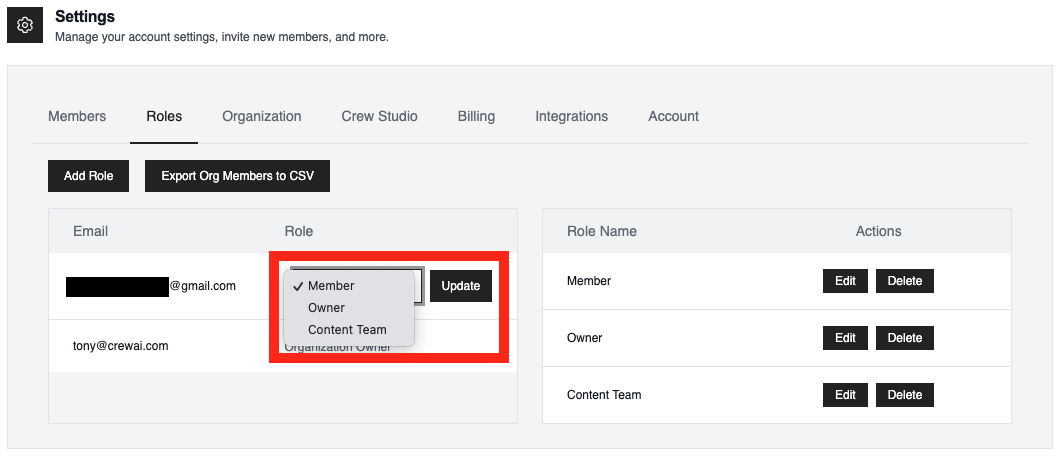
Important Notes
- Admin Privileges: Only users with administrative privileges can invite new members
- Email Accuracy: Ensure you have the correct email addresses for your team members
- Invitation Acceptance: Invited members will need to accept the invitation to join your organization
- Email Notifications: You may want to inform your team members to check their email (including spam folders) for the invitation