
Prerequisites
- A CrewAI AMP account
- A Zapier account
- A Slack account (for this specific example)
Step-by-Step Setup
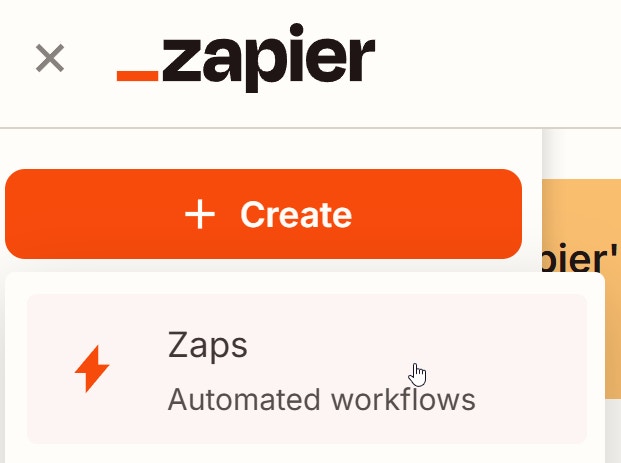
Choose Slack as your trigger app
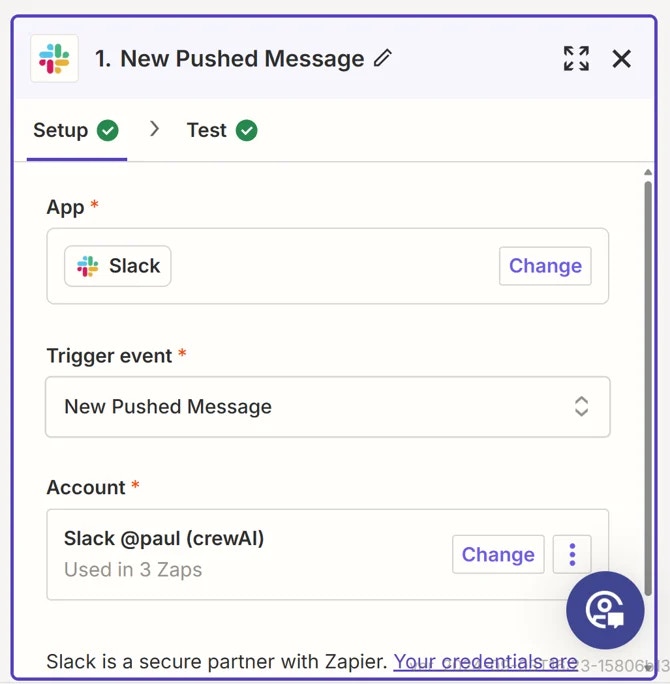
- Select
New Pushed Messageas the Trigger Event. - Connect your Slack account if you haven’t already.
Configure the CrewAI AMP Action
- Add a new action step to your Zap.
- Choose CrewAI+ as your action app and Kickoff as the Action Event
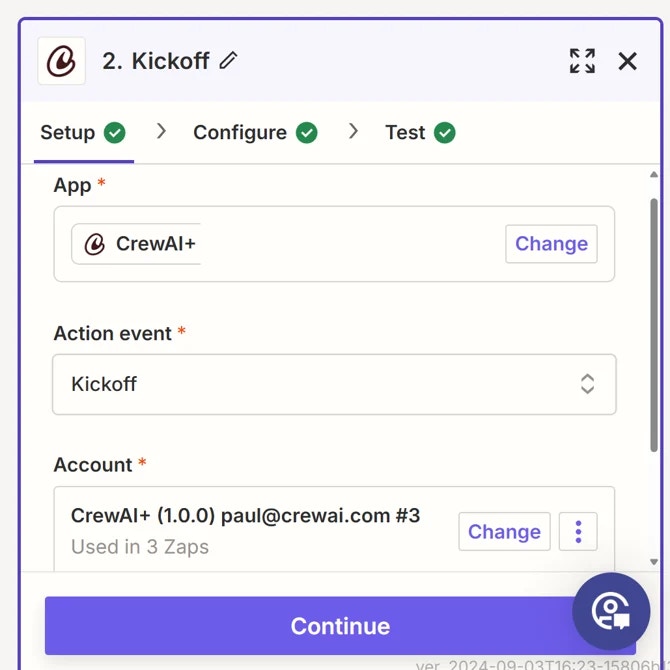
Connect your CrewAI AMP account
- Connect your CrewAI AMP account.
- Select the appropriate Crew for your workflow.
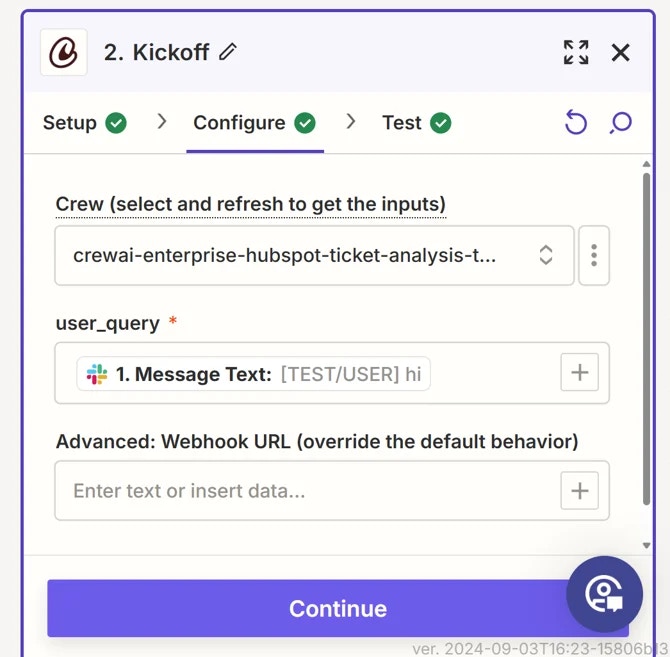
- Configure the inputs for the Crew using the data from the Slack message.
Format the CrewAI AMP Output
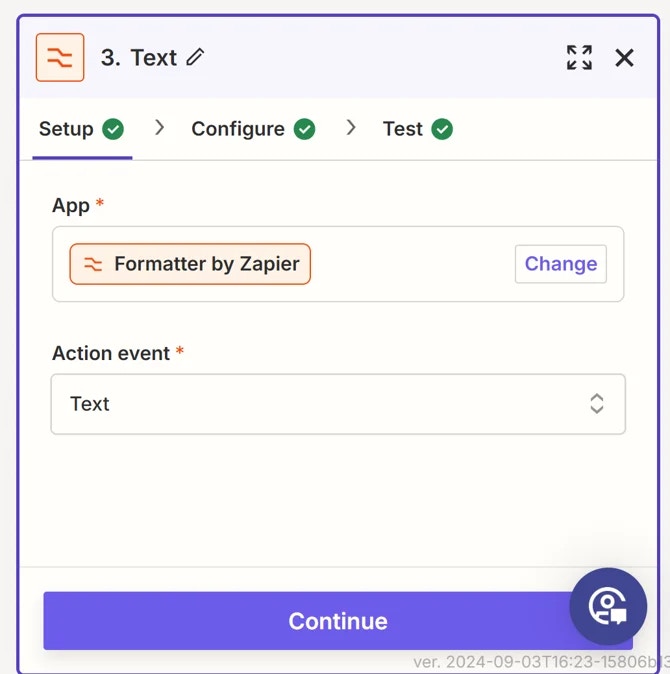
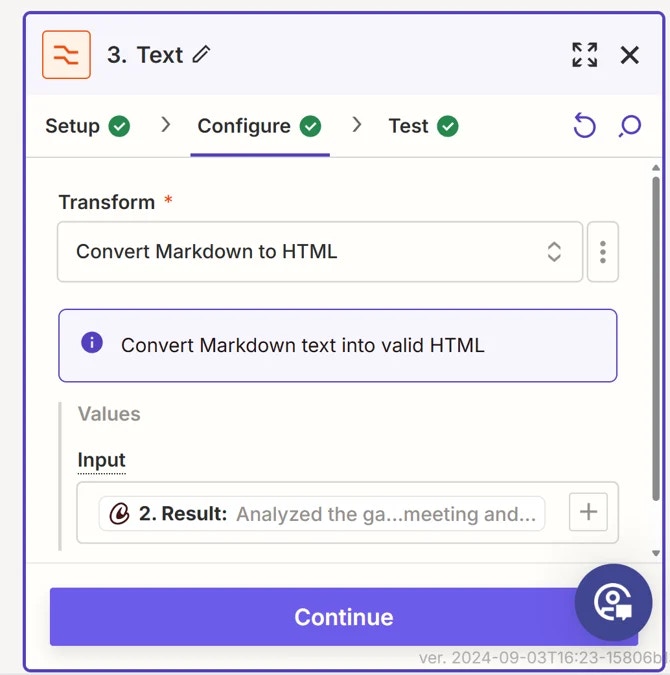
- Add another action step to format the text output from CrewAI AMP.
- Use Zapier’s formatting tools to convert the Markdown output to HTML.
Send the Output via Email
- Add a final action step to send the formatted output via email.
- Choose your preferred email service (e.g., Gmail, Outlook).
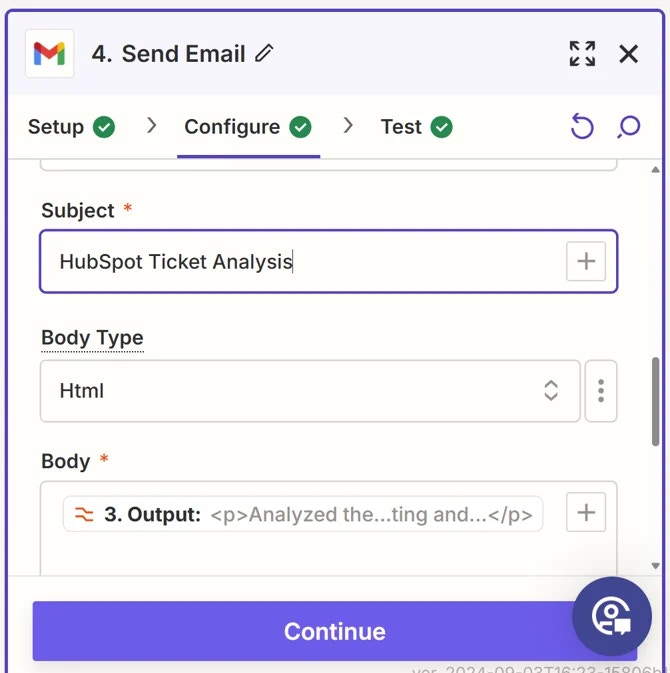
- Configure the email details, including recipient, subject, and body.
- Insert the formatted CrewAI AMP output into the email body.
Kick Off the crew from Slack
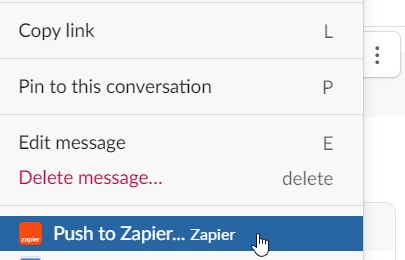
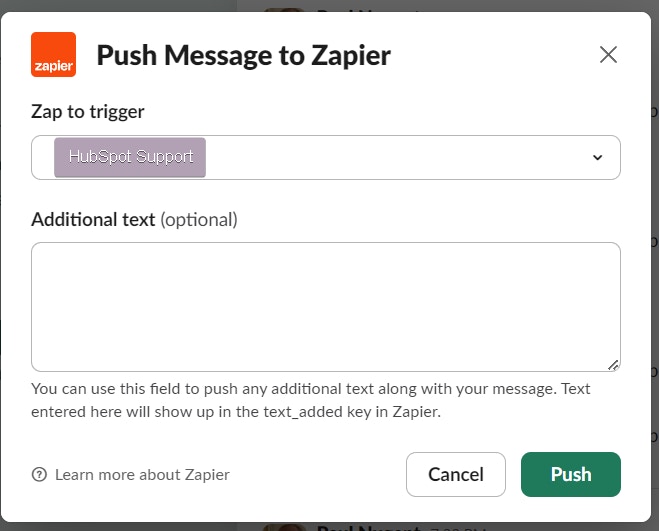
- Enter the text in your Slack channel

- Select the 3 ellipsis button and then chose Push to Zapier
Tips for Success
- Ensure that your CrewAI AMP inputs are correctly mapped from the Slack message.
- Test your Zap thoroughly before turning it on to catch any potential issues.
- Consider adding error handling steps to manage potential failures in the workflow.